
Protecting your loved ones is just as important as protecting yourself. With Privacy Bee, extending privacy protection to your family is quick and simple.
Step 1: Add Your Family Member or Another Person
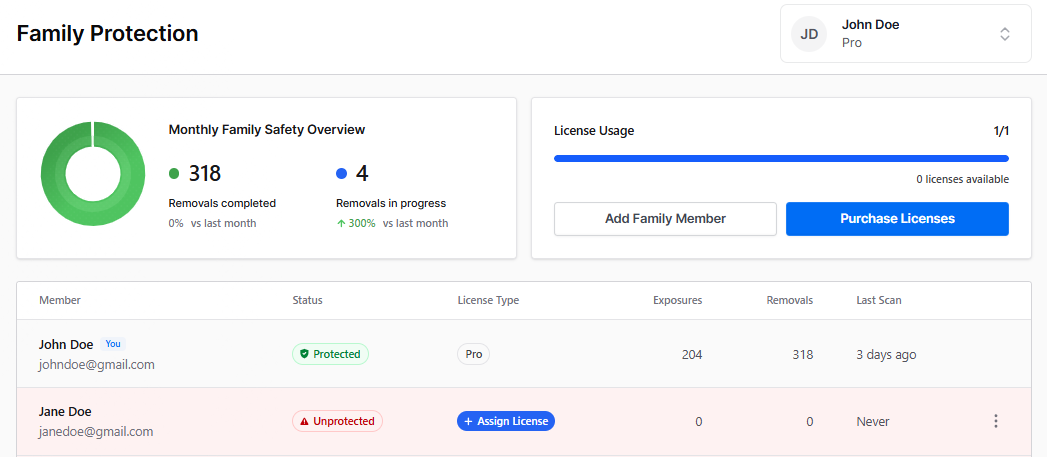
- Go to the Family Protection page from the left navigation bar.
- Select Add Family Member under the License Usage section.
- Enter your family member’s contact information:
- First and last name
- Email address
- Click the blue “Assign License” button next to their name
It will look like the screenshot below:
Step 2: Select License Type and Term
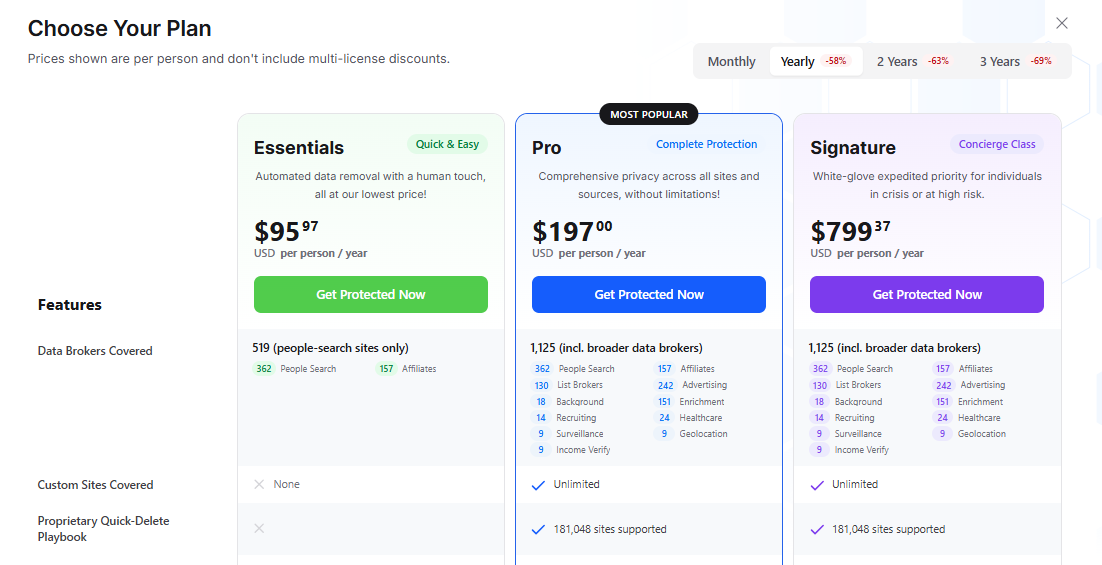
- You will be redirected to our pricing page.
- Choose the license and subscription term that best fits your family member’s needs.
If you already have a license, you’ll receive a small discount when gifting a license.
You will see a screenshot similar to the one below:
Step 3: Complete Payment
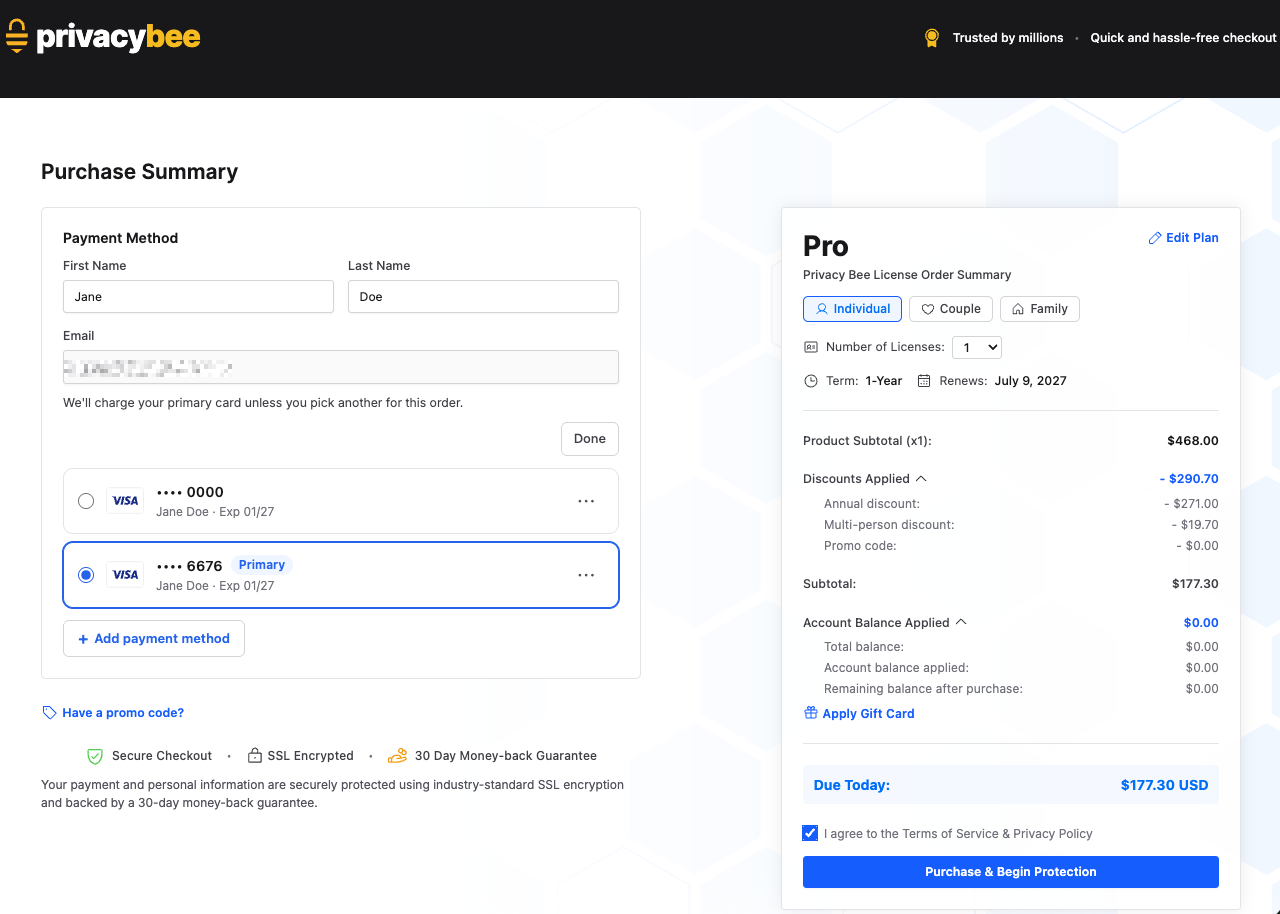
- Select your preferred card for the payment. Tick the box to confirm that you:
- Agree to our Terms of Service & Privacy Policy. Tap “Purchase” to continue.
 > Your family member can now use the license to start protecting their personal information.