Overview
The Privacy Bee iOS app gives you access to your account, Dashboard, Identity Vault, Data Brokers, Presence, and Family features in a mobile-friendly layout. This article explains how to sign in and where to find the app’s key areas.
Sign In to the Privacy Bee iOS App
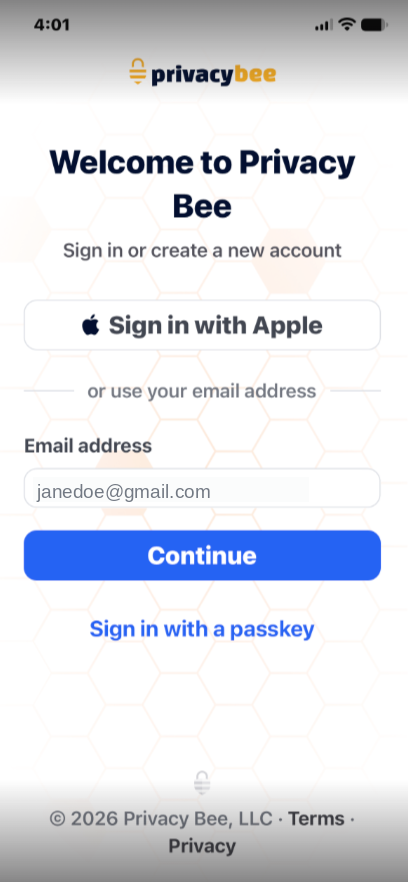
When you open the Privacy Bee iOS app, you’ll see the sign-in screen.
You can sign in by:
- Selecting Sign in with Apple
- Entering your email address and tapping Continue
- Selecting Sign in with a passkey
Verify Your Email
If you sign in with your email address, Privacy Bee will send a one-time verification code.
- Check your email for the code.
- Enter the code in the app.
- Tap Verify Email.
If needed, select Go Back or Resend Code.
View Your Dashboard
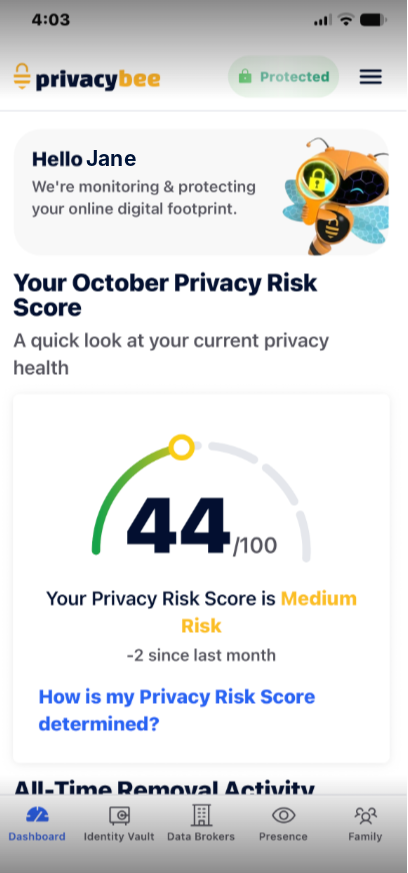
After signing in, you’ll see your Dashboard, where you can review your Privacy Risk Score and removal activity.
Use the Bottom Navigation Bar
The navigation bar at the bottom of your screen provides access to:
- Dashboard
- Identity Vault
- Data Brokers
- Presence
- Family
Tap an icon to open that section.
Open the Main Menu
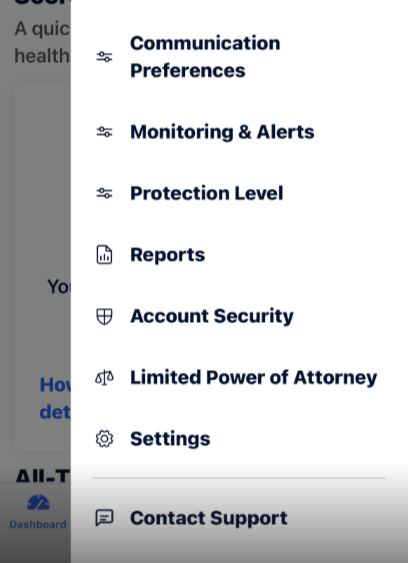
Tap the menu icon (☰) in the upper-right corner to access additional features, including:
- Communication Preferences
- Monitoring & Alerts
- Protection Level
- Reports
- Account Security
- Limited Power of Attorney
- Settings
- Contact Support
Access Settings and Log Out
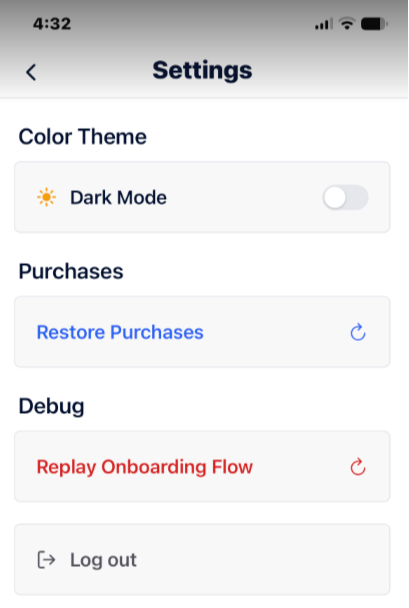
To sign out of the Privacy Bee iOS app:
- Tap the menu icon (☰) in the upper-right corner.
- Select Settings.
- Tap Log out.