
Overview:
Your Protection Level settings give you the ability to customize how Privacy Bee works on your behalf. This article walks you through what each section and additional tab do and how to configure them to match your privacy goals.
How to Access Protection Level
- From your left navigation bar, select Account Settings, then click the Protection Level tab at the top.
- Use the Quick Configure slide bar to activate higher levels of data protection.
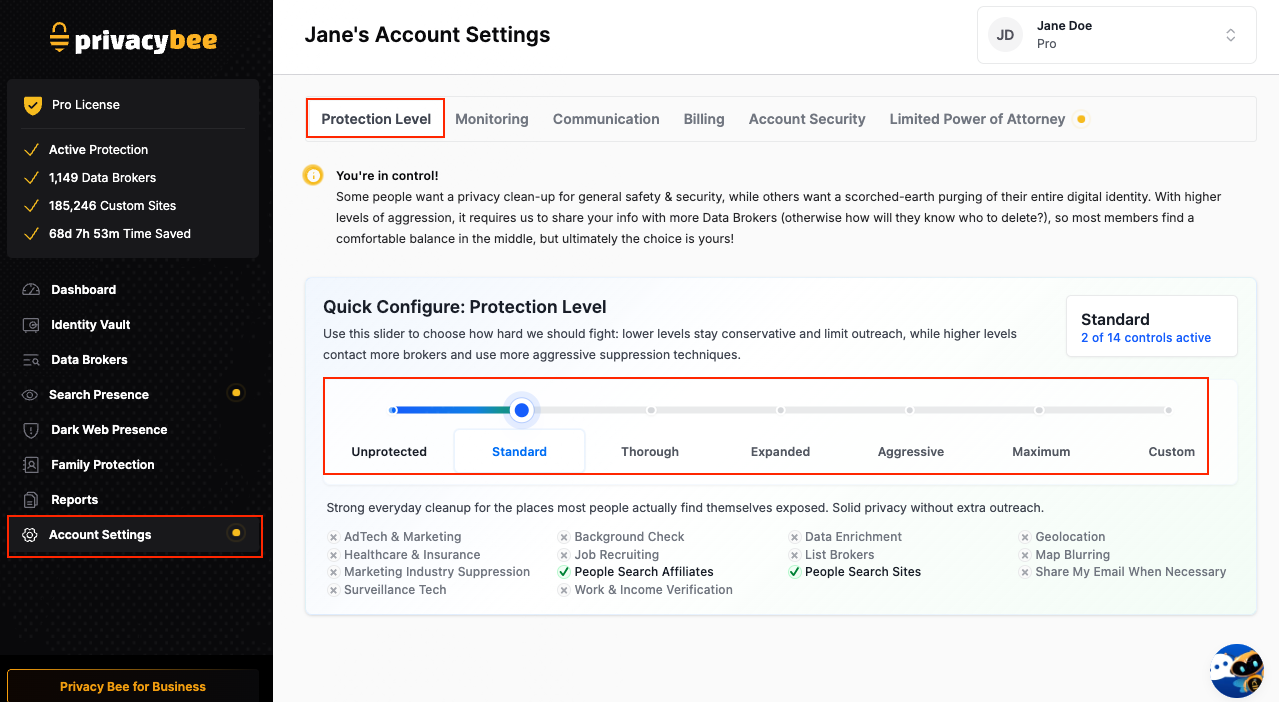
Once you have made your selections, the Protection Level will look similar to the screenshot below.
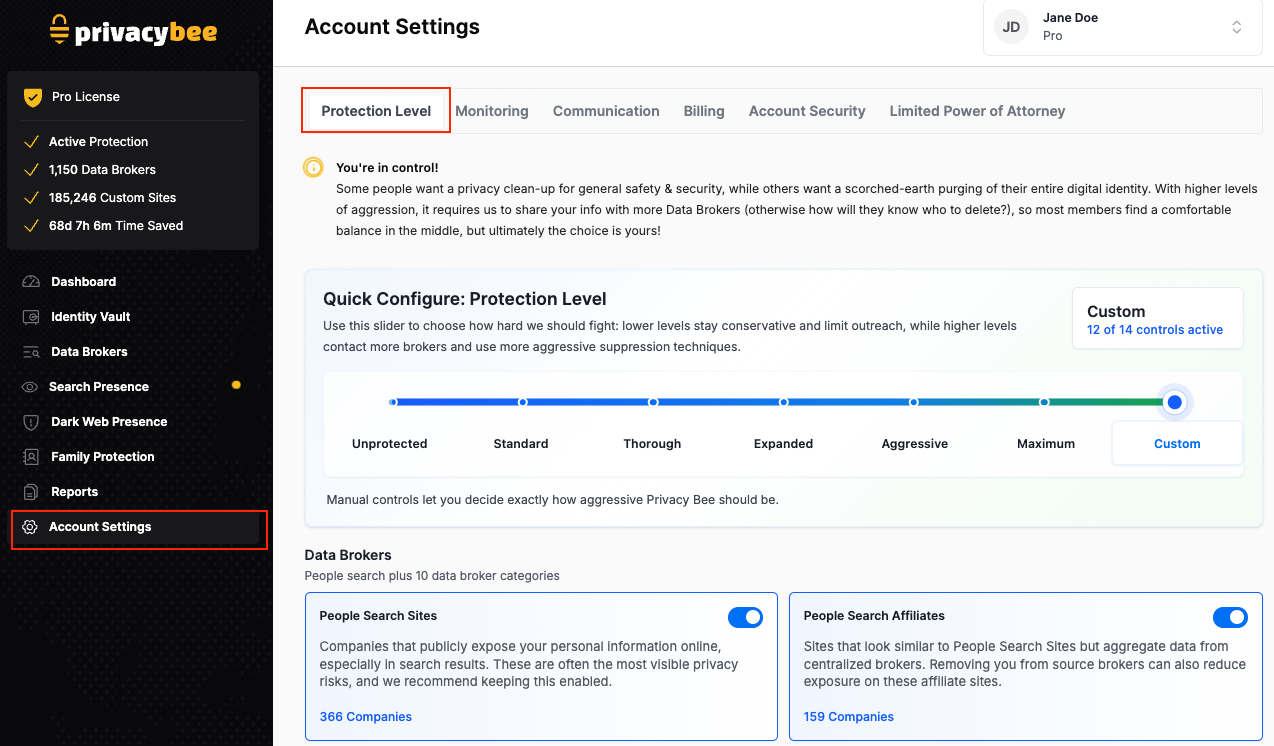
Data Brokers
This section controls which types of data broker sites Privacy Bee submits removal requests to on your behalf. People Search Sites and People Search Affiliates are toggled on by default - these are the most common sources of personal data exposure, and we recommend keeping them enabled.
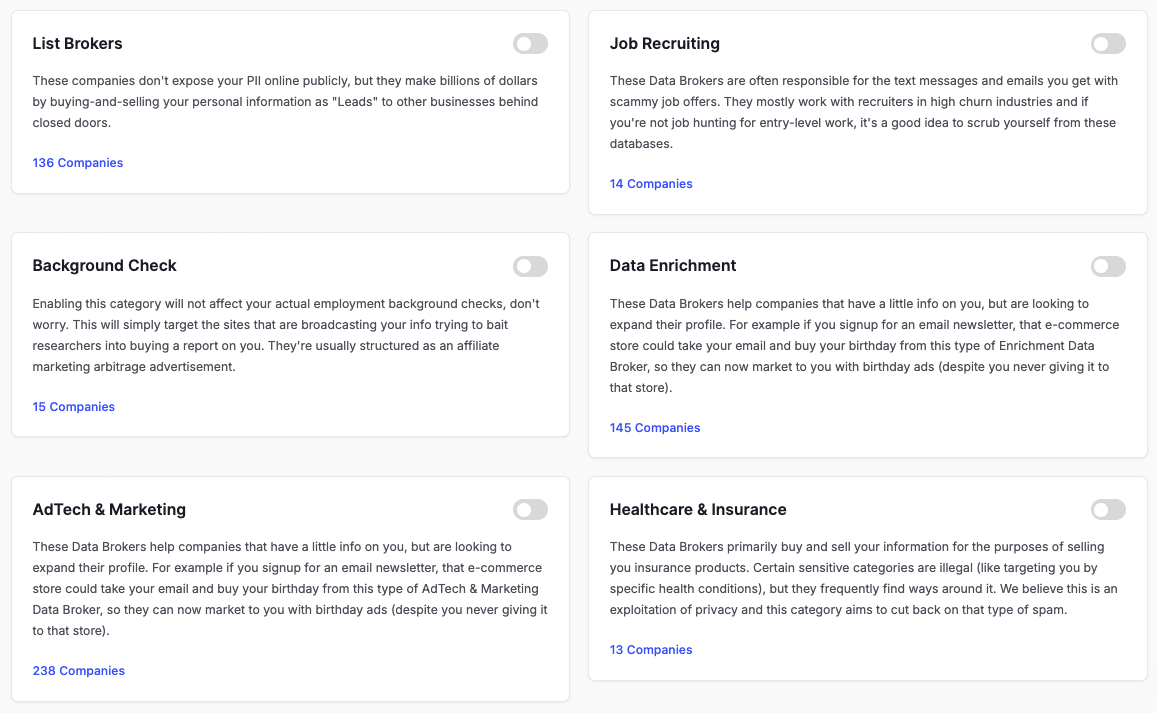
As you scroll down, you’ll find additional data broker subtypes you can toggle on or off depending on your preferences. We recommend reviewing each option and enabling the ones that align with the level of protection you’re comfortable with.
Understanding Data Broker Subtypes
When you enable a Data Broker subtype, Privacy Bee will begin sending removal requests to those types of sites on your behalf. However, it’s important to understand how this works:
- Enabling a subtype tells Privacy Bee you want removal requests sent to those companies.
- When a subtype is enabled, Privacy Bee may show an exposure as Discovered on your Data Brokers page - this does not mean Privacy Bee can read or view your data on those sites. It means a removal request has been queued or submitted.
- Each subtype requires you to make an active decision - Privacy Bee does not automatically enable all subtypes on your behalf.
- Take time to review each subtype carefully and enable the ones that align with your privacy goals.
If you are unsure which subtypes to enable, Orwell and our support team can help you decide what’s right for your situation.
Expanded Protection Section:
This section contains optional actions that go beyond standard data removal. Please review each option carefully before making any changes.
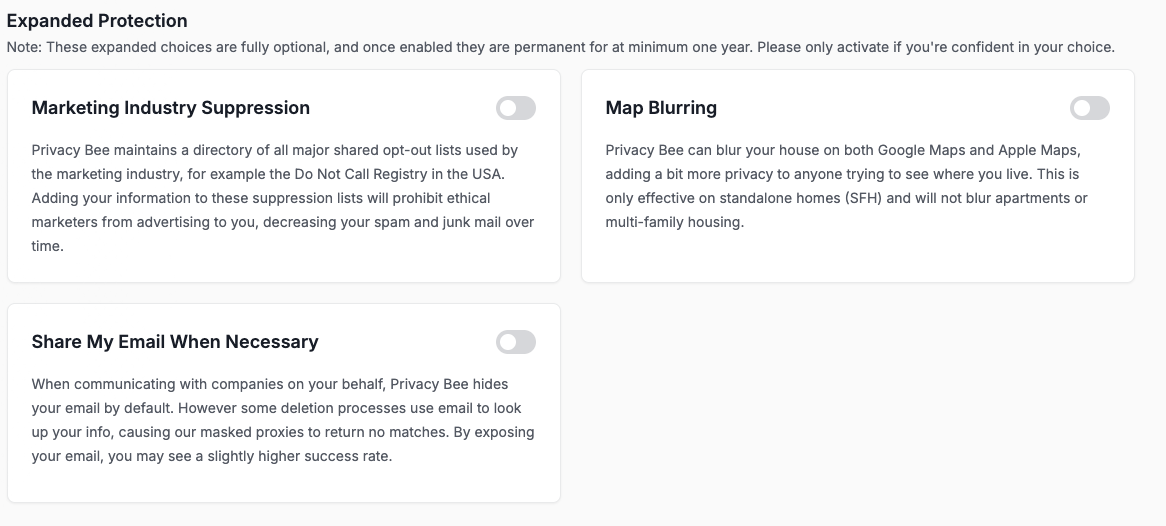
Marketing Industry Suppression:
This option asks companies to remove you from marketing lists, which can reduce the amount of physical junk mail you receive and may cut down on spam.
If you enable this and later turn it off, Privacy Bee will pause any requests that haven’t been sent yet. However, any removals that have already been completed are permanent. Once we have successfully removed you from a marketing list, that action cannot be reversed. Please make sure this matches your preference before enabling.
Share My Email When Necessary:
When enabled, this allows data brokers and other companies to confidently identify your records so they can locate and delete your exposure when required. When this feature is left disabled, your email address remains private and is not shared during privacy requests.
If you enable this and later turn it off, disabling it will stop any pending requests in your account from sharing your email going forward. However, once a request has already been sent, the deletion process cannot be halted. Please review this before enabling.
Blur My House:
The Blur My House options blur your home from view on Apple Maps and Google Maps. Before enabling, it’s worth knowing what changes: people will no longer be able to use Google or Apple Maps to get directions to your home, including friends and family. This option is also not recommended if you are planning to sell your home, as realtors won’t be able to pull comparable listings (comps) or provide directions for showings.
The Blur My House options are permanent actions and cannot be undone once submitted. Please make sure you want to proceed before enabling these.
Monitoring Tab:
This tab controls the sensors Privacy Bee uses to monitor your online exposure and calculate your Privacy Risk Score. We recommend leaving these toggled on as they help our team detect new exposures and take action on your behalf more effectively.
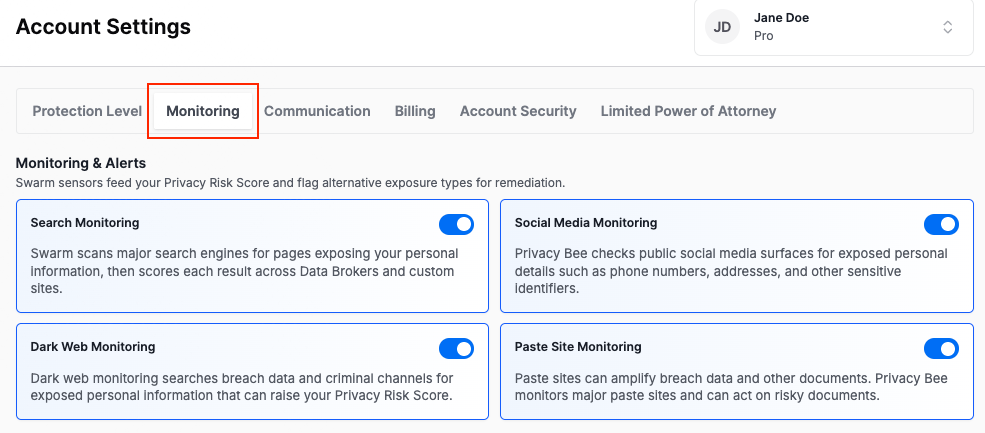 If you prefer to limit monitoring in certain areas, you have the option to toggle individual sensors off.
Communication Tab:
This tab allows you to select the types of emails you want to receive from Privacy Bee. All are automatically enabled, but you can choose which ones you prefer to receive.
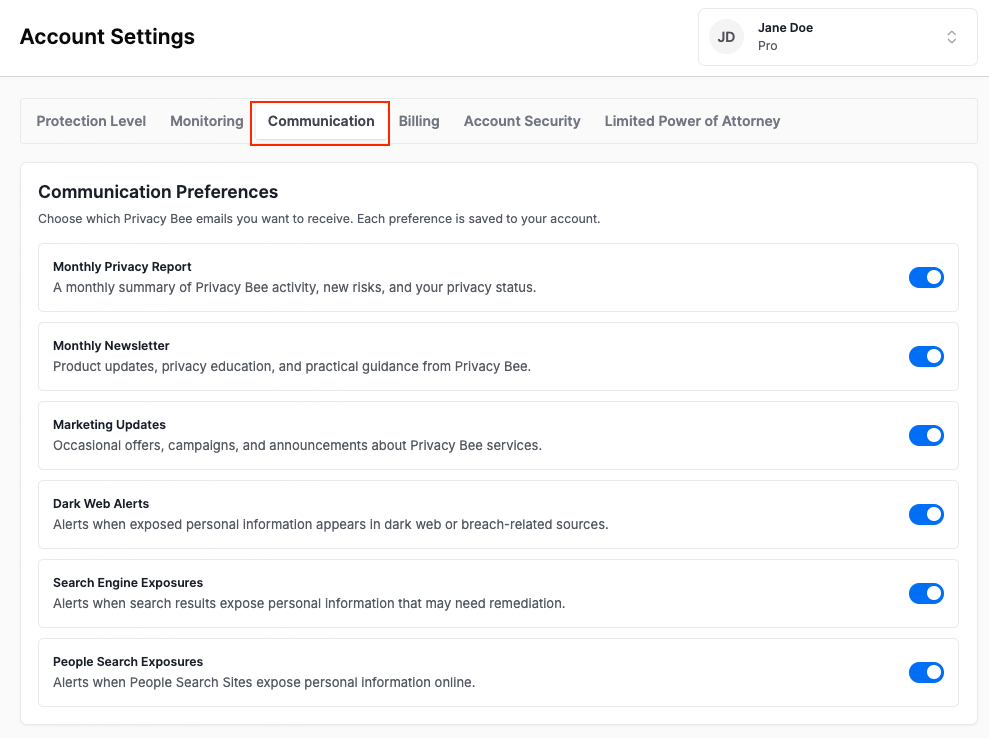
Once your selections are made, Privacy Bee will begin applying your preferences immediately. You can return to this page at any time to update your settings.