
Overview
If you’ve added a family member to your plan, you can use Impersonate Mode to view their account. This lets you see their dashboard and privacy data so you can help keep an eye on their protection.
This article covers who can use Impersonate Mode, how to enter and exit it, and what you can and can’t do while using it.
Before you start
Before using Impersonate Mode, make sure:
- You are the account holder who added the family member.
- The family member has an assigned license.
If the family member does not have an assigned license, you will not be able to impersonate their account.
How to enter Impersonate Mode
There are two ways to enter Impersonate Mode.
Option 1: From the Family Protection page
-
Sign in to your Privacy Bee dashboard.
-
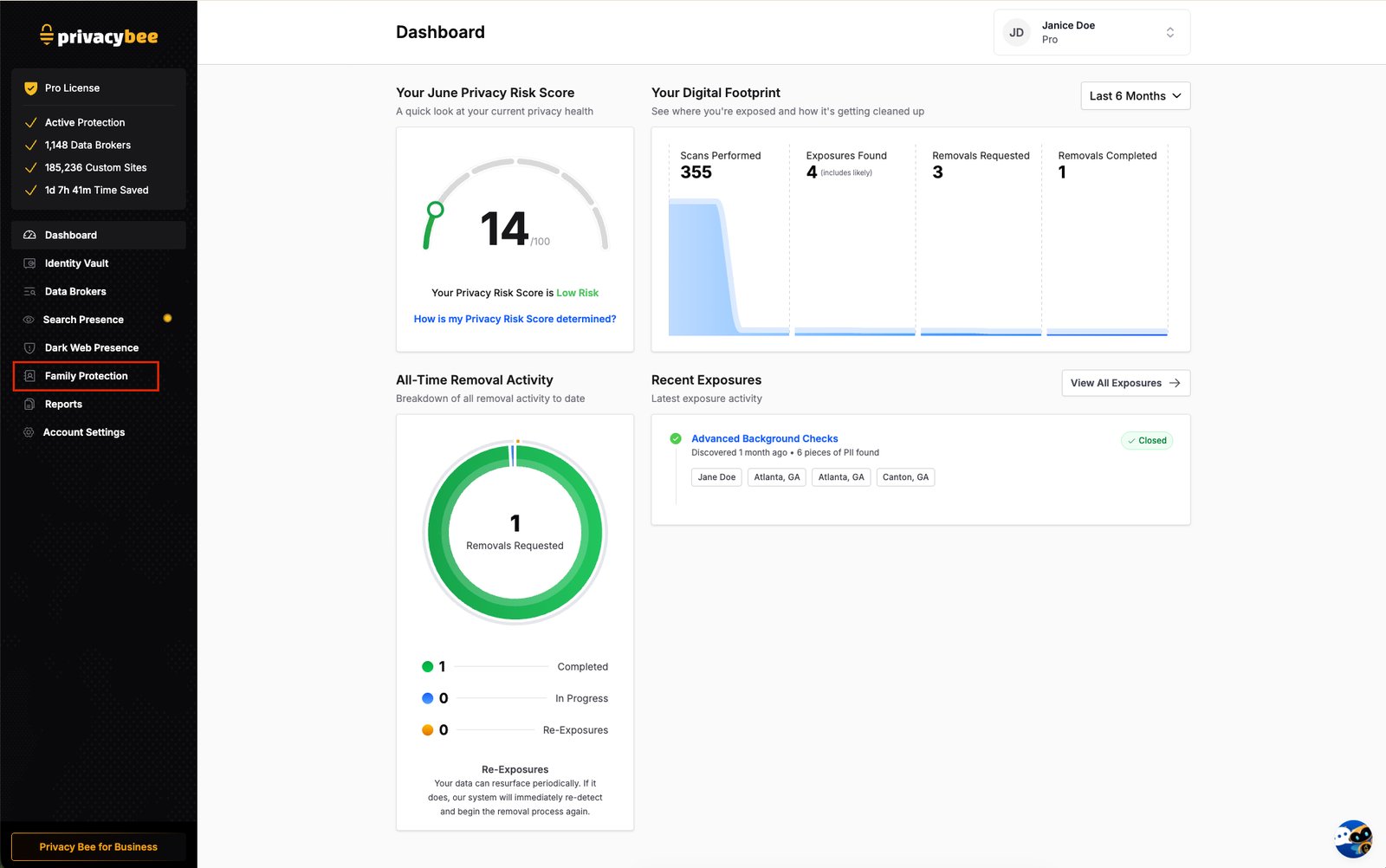
In the left menu, click Family Protection.
-
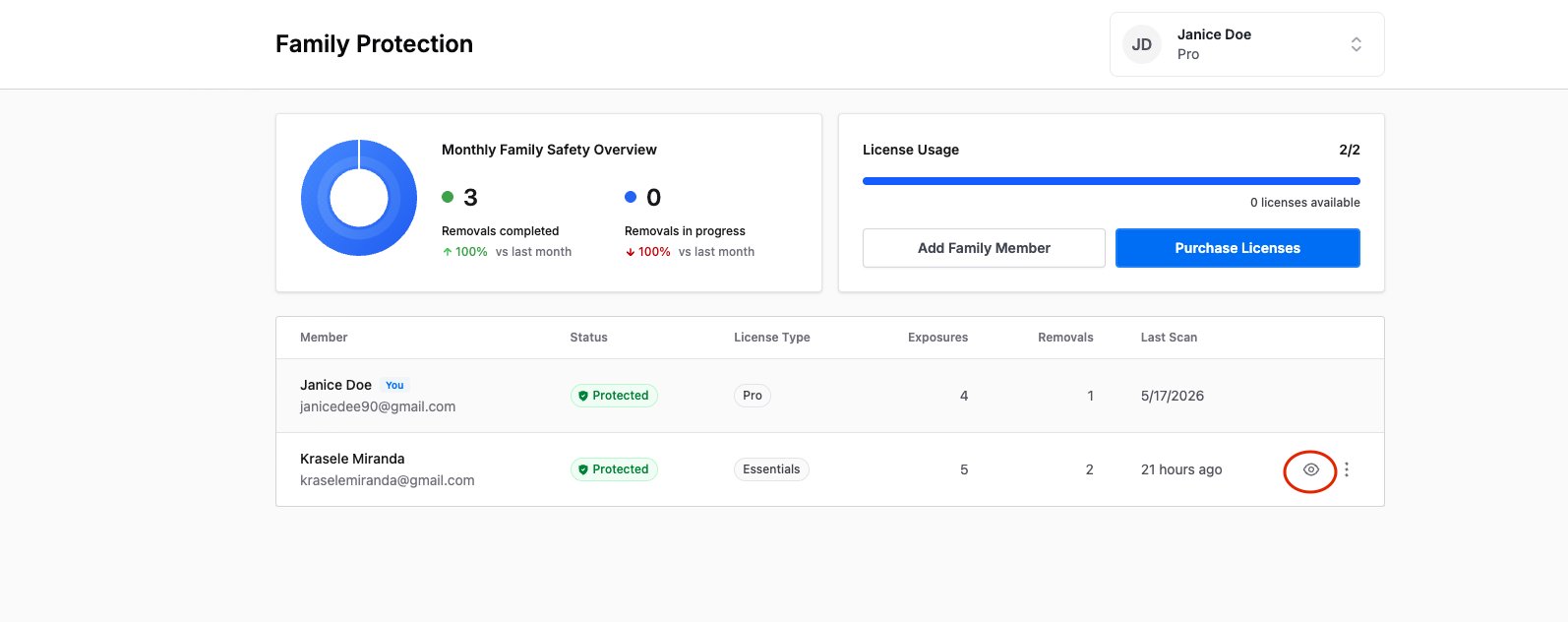
Find the family member you want to view.
-
Confirm they have an assigned license.
-
Click the eye icon on their row to enter Impersonate Mode.
Option 2: From the account menu
-
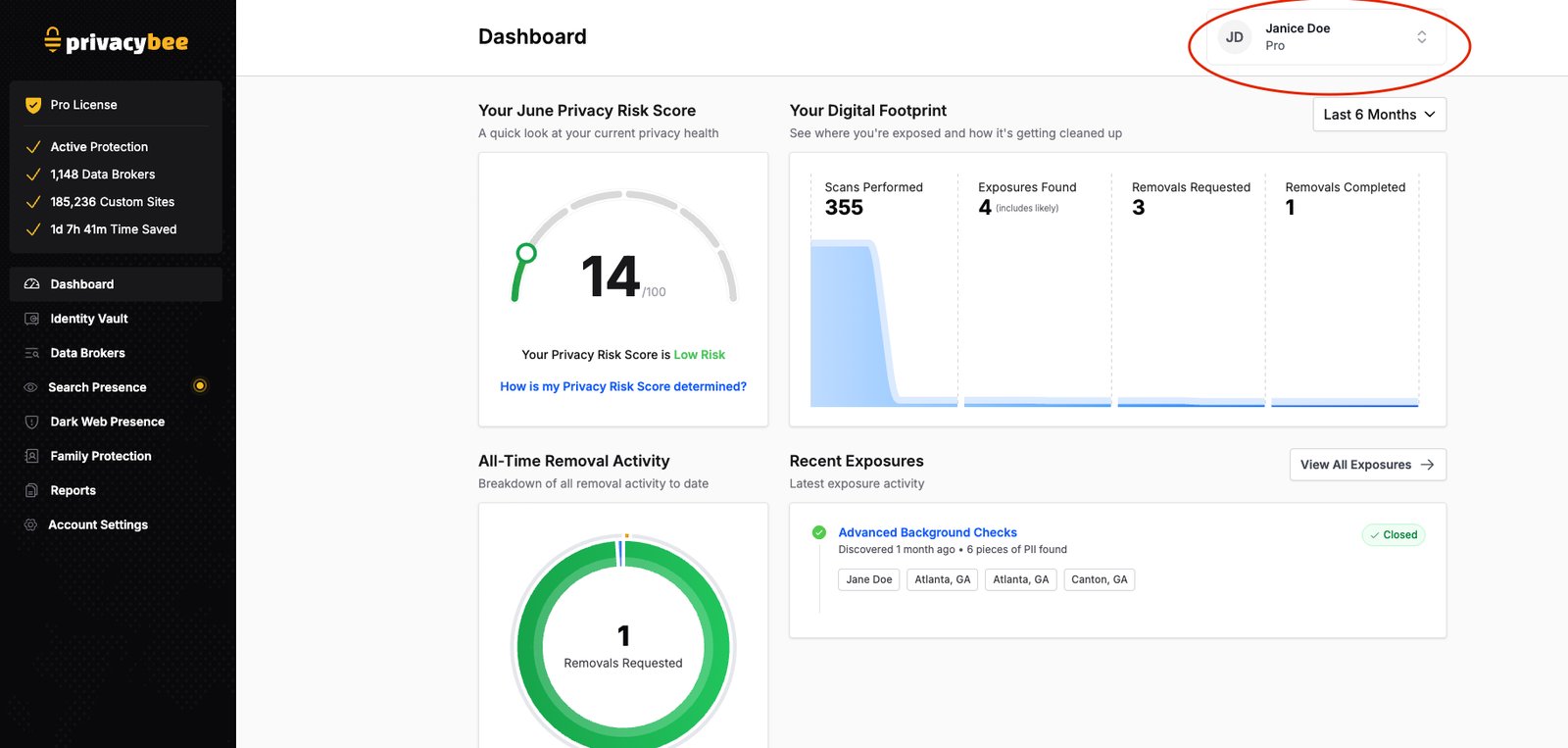
Click your name in the top-right corner of the dashboard to open the account menu.
-
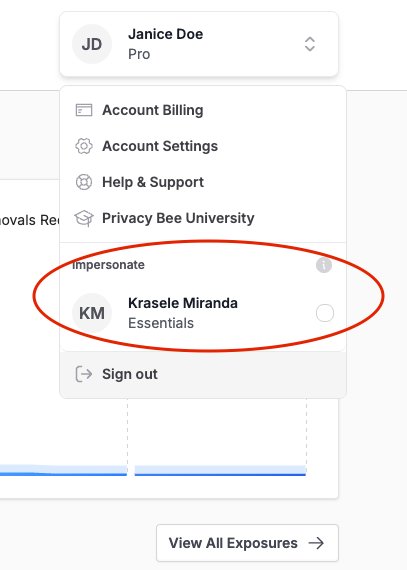
Under Impersonate, find the family member’s name.
-
Click their name to enter Impersonate Mode.
What you can see in Impersonate Mode
Once you enter Impersonate Mode, you’ll land on the family member’s dashboard.
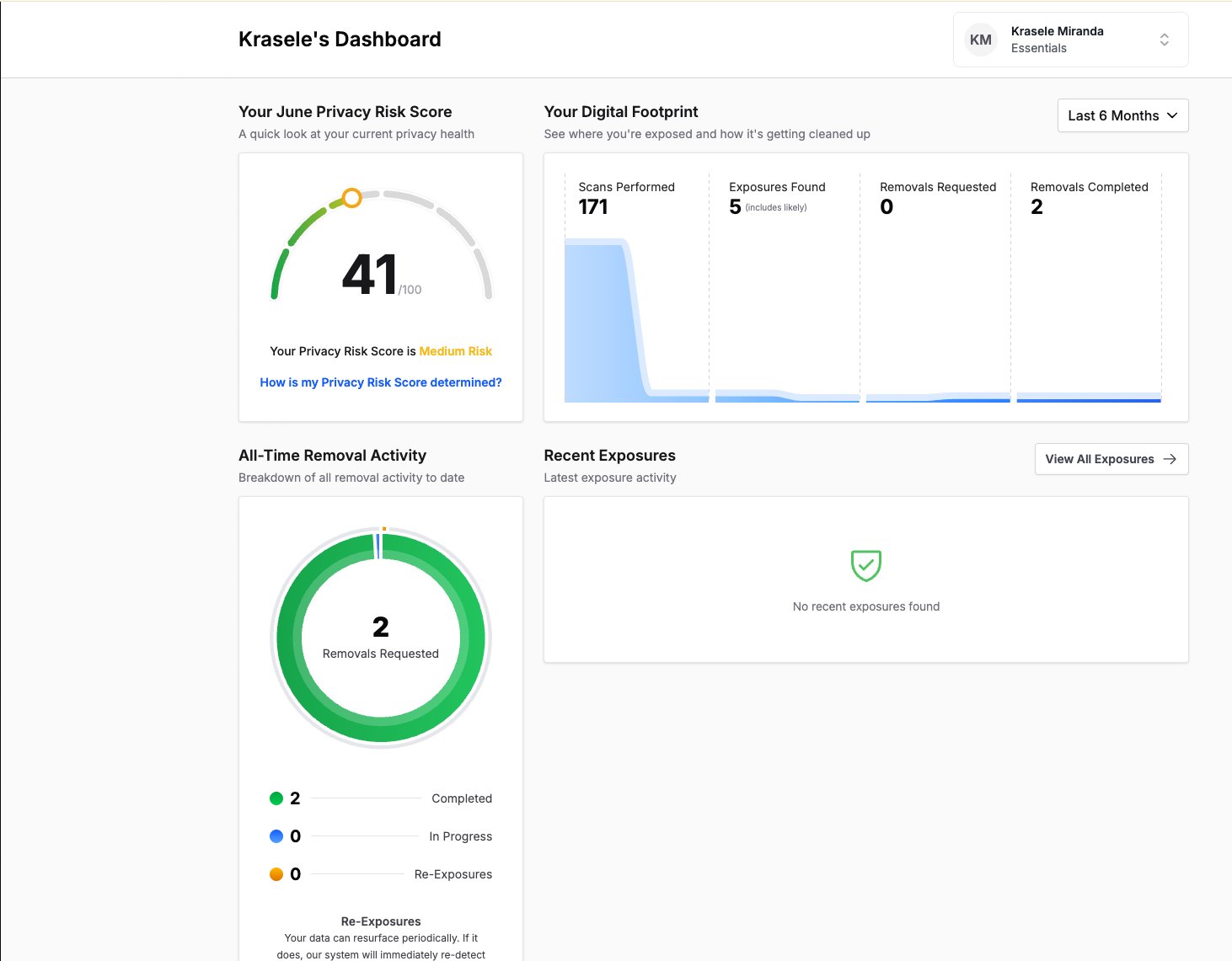 From there, you can view their privacy data, including:
- Privacy Risk Score
- Digital Footprint
- Scans
- Exposures
- Removal activity
What you can’t do in Impersonate Mode
Important: Impersonate Mode lets you view a family member’s dashboard, but it does not allow you to complete legal documents for an adult family member.
You cannot sign legal documents on an adult family member’s behalf, including their Limited Power of Attorney. Each adult family member must sign their own legal documents from their own account.
The exception is for minors. If the family member is a minor, the account holder can sign legal documents on their behalf.
How to exit Impersonate Mode
To stop viewing the family member’s account:
-
Open the account menu in the top-right corner.
-
Click Stop Impersonating.
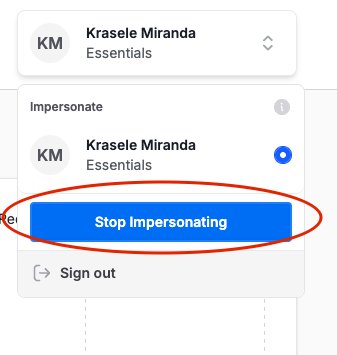
You’ll return to your own account after exiting Impersonate Mode.